

결과에 따라 A2OS·CAP·CAS·CSA·CLUEX 선택하기
비교표와 보고 초안, 방문자 안내, 출처가 있는 검색 근거를 예시로 보고 내 업무에 필요한 도움을 고릅니다.
시작 전 준비
- 해결하려는 업무와 결과를 읽을 사람
- 공개 범위가 확인된 자료 또는 아래 가상 예제
- 사용할 제품의 계정과 해당 기능 권한
사용할 사람과 결과를 기준으로 제품을 고릅니다
직원이 검토할 답변·자료는 CAP, 방문객이 만나는 웹·기기 안내는 CAS, 보안 업무의 조사·검토는 CSA, 원문 검색과 업무 데이터는 CLUEX의 역할로 구분합니다. A2OS는 에이전트를 구성하고 실행하는 기본 환경이며 Console은 조직·설치·비용을 운영합니다. 한 업무에 여러 제품이 참여할 수 있지만 연결·자료·권한은 따로 준비해야 합니다. 예를 들어 CLUEX에서 규정을 찾았다고 CAS 공개 기기의 안내가 바로 갱신되는 것은 아닙니다. 먼저 한 사용자와 한 결과를 정해 시험하세요.
1. 원하는 것은 기능 이름보다 쓸 수 있는 결과입니다
같은 “방문 안내 자료”라도 내부 직원에게 필요한 것은 변경 사항을 정리한 초안이고, 방문자에게 필요한 것은 지금 궁금한 위치·운영 시간의 답변입니다. 자료 담당자에게는 그 답변을 뒷받침하는 원문과 적용일이 필요합니다. 먼저 누가, 어떤 결과를 받아, 다음에 무엇을 할지를 정하면 제품과 설정을 고르기 쉬워집니다.
| 지금 겪는 일 | 받을 수 있는 도움과 결과 형태 | 그 결과로 이어갈 업무 |
|---|---|---|
| 두 문의 목록에서 바뀐 항목을 일일이 비교함 | CAP에 자료를 제공하고 신규·변경·미포함 항목의 비교표와 보고 초안을 요청 | 원본을 대조한 뒤 담당자에게 확인하거나 회의 안건으로 사용 |
| 방문자가 위치·운영 시간을 반복해서 물음 | CAS의 연결된 에이전트와 안내 자료로 질문별 화면 답변·음성 안내, 또는 검토한 사이니지 콘텐츠 제공 | 반복 안내를 제공하고 예외·확인이 필요한 문의는 담당자가 처리 |
| 문서가 많아 어떤 규정이 근거인지 찾기 어려움 | CLUEX에 자료를 준비하고 질문에 맞는 원문 구절·출처·관계 정보를 찾아 검토 | 최신 적용 기준을 확인하고 답변·안내문에 사용할 근거 선택 |
이 페이지의 표와 문구는 가상 자료로 만든 설명용 결과 예시입니다. 제품을 실행해서 수집한 응답이나 처리 실적이 아닙니다. 실제 결과는 준비한 자료, 연결 범위, 설정과 질문에 따라 확인합니다.
A2OS는 에이전트 설계, 공통 API와 실행을 제공합니다. CAP는 개인·팀 협업을, CAS는 캠페인·콘텐츠·고객 대화·사이니지·기기를, CSA는 승인된 보안 점검을 담당합니다. CLUEX는 독립된 데이터·지식 플랫폼입니다. Console은 계약과 설치를 관리합니다. 공통 런타임을 사용해도 모든 제품의 이용 권한이 부여되지는 않습니다.
이어서 읽기: 보안 점검 실행.
2. CAP: 두 목록을 비교해 회의에서 쓸 조치표 얻기
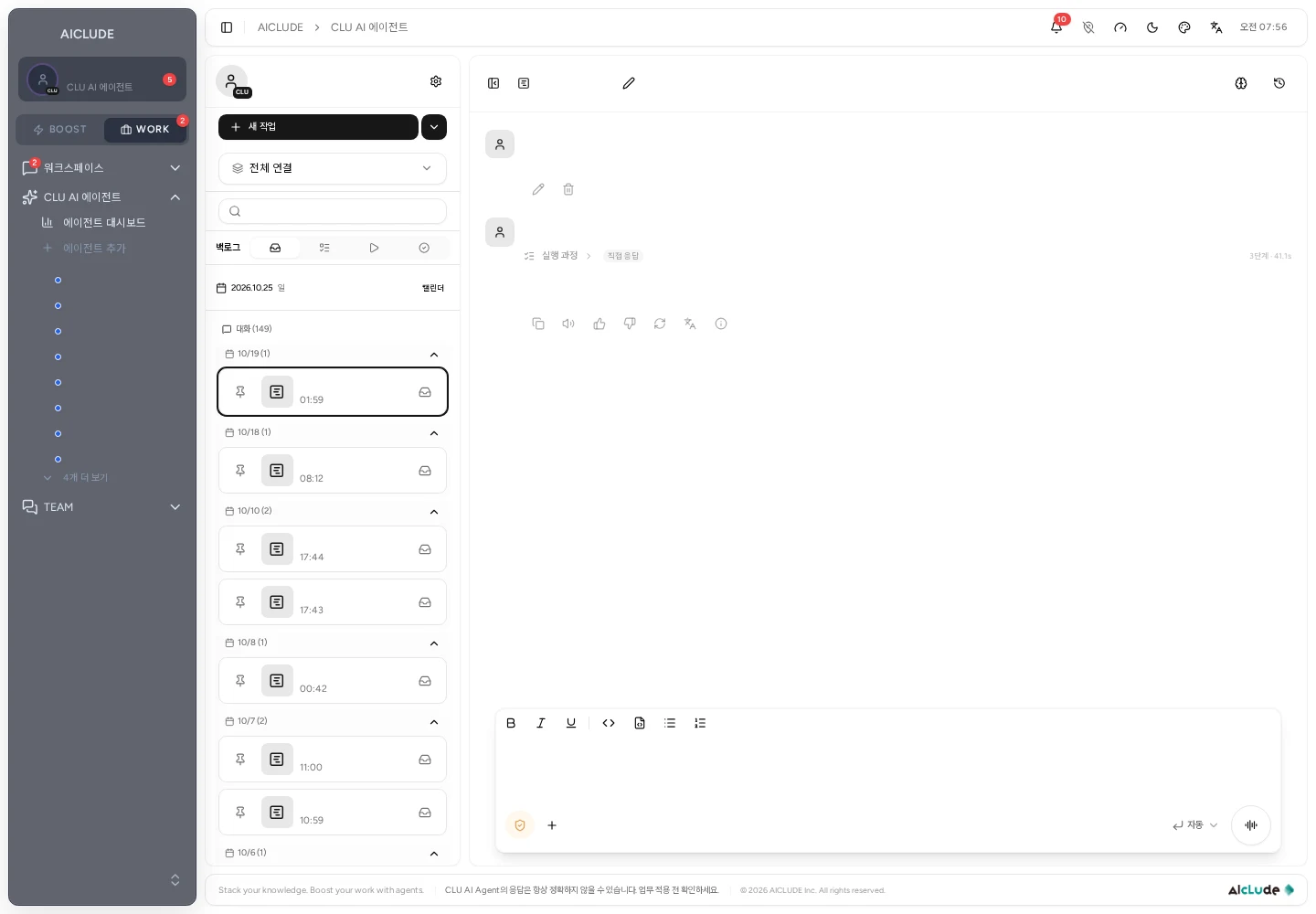
이전 문의 목록과 현재 문의 목록을 내려받아 내용을 먼저 읽습니다. 두 파일의 id가 같은 업무를 가리킨다는 전제로 선택한 대화에 자료를 제공하고 다음처럼 요청합니다.
두 CSV를 id 기준으로 비교해 주세요. 신규, 상태 변경, 현재 파일에 없는 항목을 구분하고 이전값과 현재값, 사람이 확인할 다음 일을 표로 작성해 주세요. 누락을 삭제나 완료로 판단하지 말고, 끝에 회의용 보고 초안을 3문장으로 써 주세요.
원본을 기준으로 검토할 결과 예시는 다음과 같습니다. 생성된 답변의 모양이 똑같아야 한다는 뜻은 아닙니다.
| 항목 | 비교에서 확인되는 사실 | 다음에 할 일 |
|---|---|---|
| R101 | 접수 → 진행 중 | 김하늘에게 남은 검토와 완료 예정 확인 |
| R102 | 진행 중 → 완료 | 이준호의 완료 결과 확인 |
| R103 | 이전 파일에 있고 현재 파일에는 없음 | 추출 범위 차이인지 누락인지 원본 담당자에게 확인 |
| R104 | 현재 파일에 새로 나타남 | 이준호에게 발음 확인 범위와 기한 확인 |
예를 들어 보고 초안은 “상태가 바뀐 항목은 2건이고, 새로 포함된 항목은 1건입니다. R103은 현재 파일에 없어 별도 확인이 필요합니다. 완료 항목의 결과와 미확인 항목을 대조한 뒤 다음 조치를 정하겠습니다.”처럼 작성할 수 있습니다. 도움의 핵심은 원본을 하나씩 훑기 전에 비교·질문·보고의 초안을 한곳에서 받는 것입니다. 파일 기간과 ID 중복을 확인한 뒤 목록 비교 활용 가이드로 이어갑니다.
3. CAS: 방문자에게 필요한 답을 짧게 제공하기
방문 안내 v2는 10월 1일부터 평일 09:00–18:00 운영, 1층 접수, 2층 203호 가람홀, 방문 확인 시 2시간 무료 주차를 안내하는 가상 자료입니다. 공개할 수 있는 이 자료를 대상 에이전트의 지식으로 준비하고, 연결된 웹 위젯이나 현장 기기에서 새 질문으로 확인합니다.
방문자 질문 예시
10월 평일에 교육받으러 가는데 어디로 가면 되나요? 주차도 알려 주세요.
자료에 근거한 안내 문구의 예시
먼저 1층 안내 데스크에서 접수한 뒤 2층 203호 가람홀로 이동해 주세요. 평일 안내 시간은 09:00~18:00입니다. 안내 데스크에서 방문 확인을 받으면 주차는 2시간 무료입니다.
방문자는 긴 공지 전체를 읽기 전에 필요한 동선과 조건을 안내받을 수 있습니다. 운영자는 같은 질문을 설명할 기준을 유지하면서 특별한 요청에 집중할 수 있습니다. 반대로 “제 예약이 완료됐나요?”는 이 자료에 답이 없습니다. 예약 조회 연결이 없다면 상태를 지어내지 않고 담당자가 확인할 항목으로 분리하는지 봅니다. 운영자가 대화에 참여할 때는 위젯 상담 가이드에서 제공되는 메모·직접 답변·코칭의 역할을 확인합니다.
사이니지에서는 같은 자료로 검토한 안내 콘텐츠를 보여 줍니다. 영상 재생과 실시간 질문·답변은 받는 결과가 다르므로 방문자가 어떤 방식으로 도움을 받을지부터 정하세요.
4. CLUEX: 답변을 뒷받침할 구절과 적용일 찾기
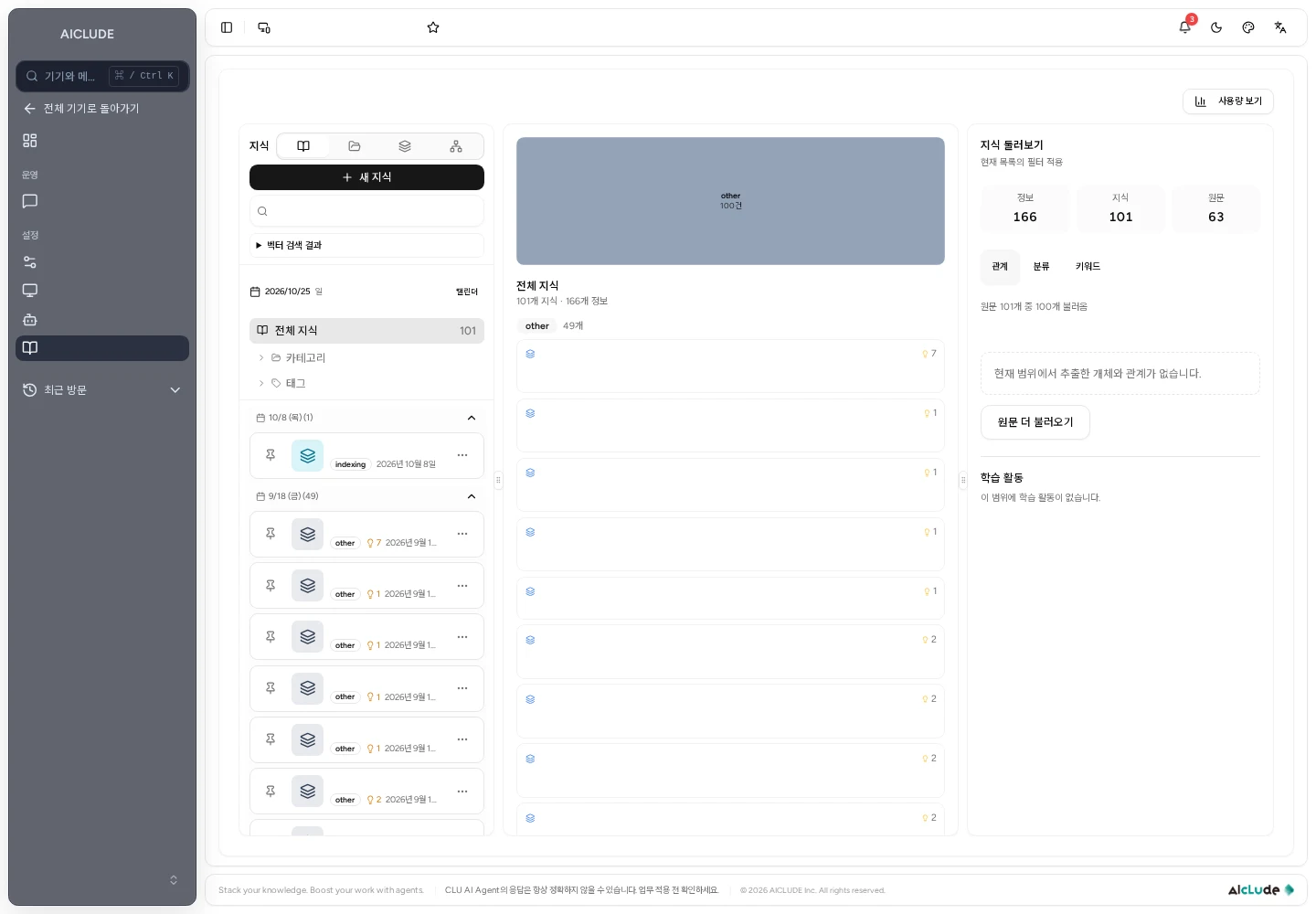
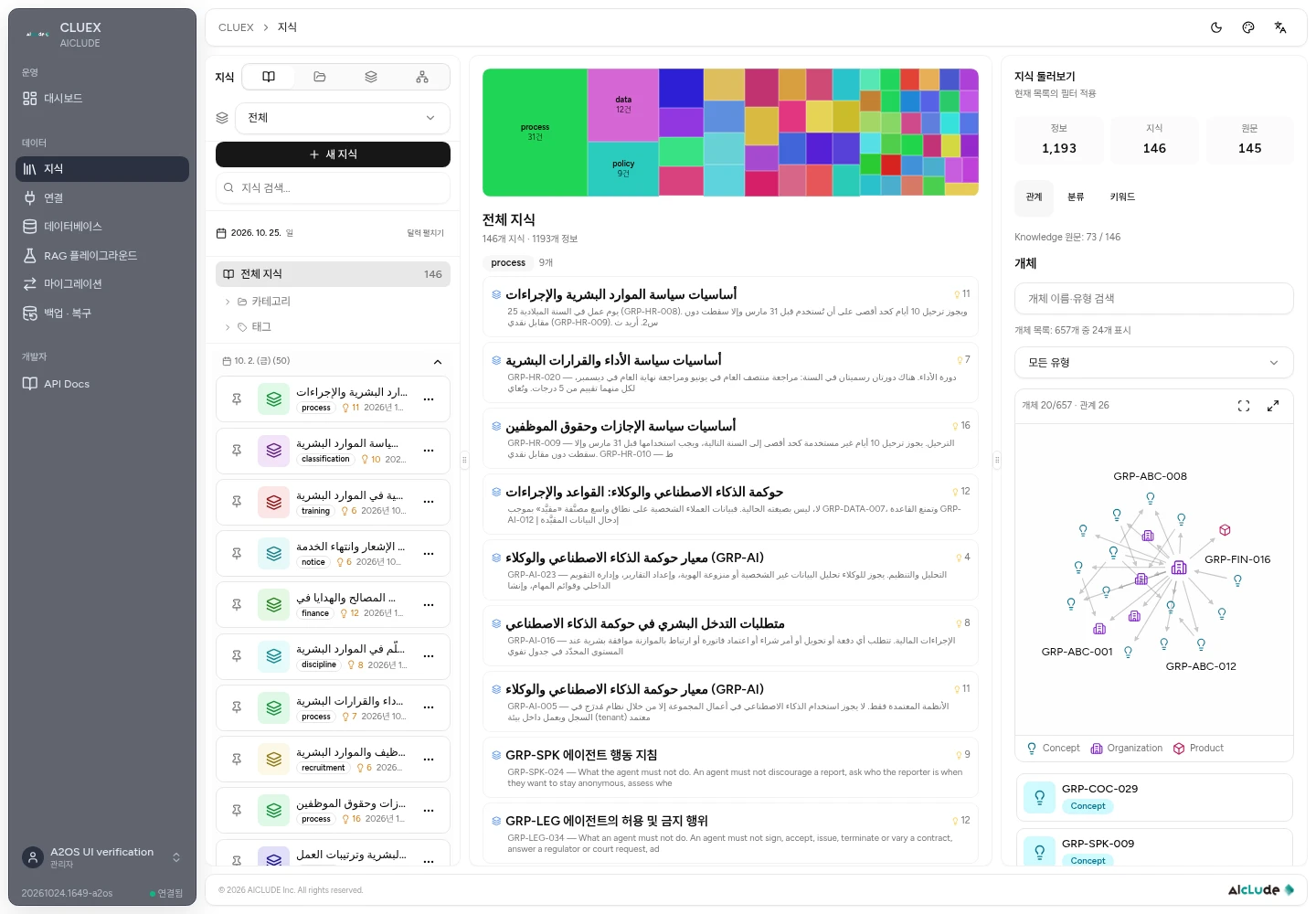
방문 안내 v1과 v2는 종료 시간과 무료 주차 시간이 다릅니다. 자료를 준비하고 처리 상태를 확인한 뒤 “10월 방문 시 운영 시간과 무료 주차 조건은?”처럼 적용 시점을 포함해 검색합니다.
CLUEX에서 먼저 얻으려는 것은 답변 근거 후보입니다. 검색 결과의 원문을 읽고 담당자가 다음처럼 검토표로 정리할 수 있습니다. 아래 표는 검토자가 작성한 예시이며 자동으로 내보내는 제품 화면이라고 가정하지 않습니다.
| 출처 | 원문에서 확인할 내용 | 답변 작성에 쓰는 방식 |
|---|---|---|
| v1 | 9월 30일까지, 17:00 종료, 방문 확인 시 주차 1시간 무료 | 이전 안내와 무엇이 달라졌는지 비교 |
| v2 | 10월 1일부터, 18:00 종료, 방문 확인 시 주차 2시간 무료 | 10월 안내 답변에 사용할 근거 |
| 두 자료 모두 | 실시간 예약 상태 없음 | 예약 완료 여부는 다른 확인 경로가 필요함을 표시 |
도움의 핵심은 여러 문서를 처음부터 읽기 전에 질문과 관련된 구절을 모아 근거를 점검하는 것입니다. 검색 점수를 최신성이나 승인 여부로 해석하지 말고 원문·적용일을 읽습니다. 출처 검토 가이드에서는 질문, 출처, 확인된 사실과 미정 조건이 남는 검토 기록으로 이어갑니다.
업무에 맞는 경험 선택
A2OS는 에이전트 설계, 공통 API와 실행을 제공합니다. CAP는 개인·팀 협업을, CAS는 캠페인·콘텐츠·고객 대화·사이니지·기기를, CSA는 승인된 보안 점검을 담당합니다. CLUEX는 독립된 데이터·지식 플랫폼입니다. Console은 계약과 설치를 관리합니다. 공통 런타임을 사용해도 모든 제품의 이용 권한이 부여되지는 않습니다.
6. 잘 활용하고 있는지 확인할 기준 정하기
“AI가 답했다”보다 업무에 쓸 수 있는 결과인지 확인합니다. 처음에는 같은 입력으로 작은 사례 3개를 골라 아래 기준을 적어 보세요.
- CAP 비교표: ID별 변화가 원본과 맞는지, 빠진 항목을 단정하지 않았는지, 다음 담당자가 행동할 정보가 있는지.
- CAS 안내: 위치·시간·주차 조건이 맞는지, 질문한 내용에 짧게 답하는지, 자료에 없는 개인 예약을 만들어내지 않는지.
- CLUEX 근거: 필요한 구절과 출처를 찾았는지, 적용일을 확인할 수 있는지, 남은 미확인 조건을 구분할 수 있는지.
다음 회차에는 자료 또는 설정 하나를 바꾸고 같은 입력으로 결과를 비교합니다. 수정 횟수, 찾지 못한 근거, 사람이 다시 물어본 항목을 기록하면 어떤 부분에서 도움을 받고 무엇을 더 준비해야 하는지 판단할 수 있습니다. 문서의 예시를 실제 성과 수치로 사용하지 않습니다.
데이터 흐름

처리 순서

핵심 요약
- CAP에서는 원본을 비교·정리한 초안을 받아 사람의 검토와 후속 업무로 연결합니다.
- CAS에서는 공개 안내를 방문자의 질문·화면·음성에 맞게 제공하고 예외 요청의 처리 범위를 정합니다.
- CLUEX에서는 답변에 쓸 원문과 출처를 찾아 적용일·조건을 검토합니다.
- 같은 자료를 사용해도 각 제품의 연결·처리·게시 상태와 실제 결과를 각각 확인합니다.
현재 설치본 화면은 한국어·일본어 문서에서 해당 언어로, 나머지 언어 문서에서 영어로 표시합니다. 개인 이름과 연락처는 가렸습니다. 이전 A2OS 예시 화면은 캡션에 표시합니다. 도식은 논리적 흐름을 설명하며 뷰어 조작 버튼은 영어입니다. 제공 범위는 설치·설정·권한에 따라 달라집니다.